Branding
Under Branding (/admin/designs) you manage designs — named sets
of logo, colors, font, texts layout, and PDF appearance that you assign to
your events. Every account has at least one default design, which
automatically applies to all events that haven't been assigned a
different one.
Logo, colors, and identity & contact are part of the Free plan. Font, button style, portal background image, and the PDF layout are Pro features — see Plan & Billing. Portal texts (welcome title, welcome text, consent text, and refusal text) aren't part of a design — they're set directly per event, see Create an Event.
Managing multiple designs
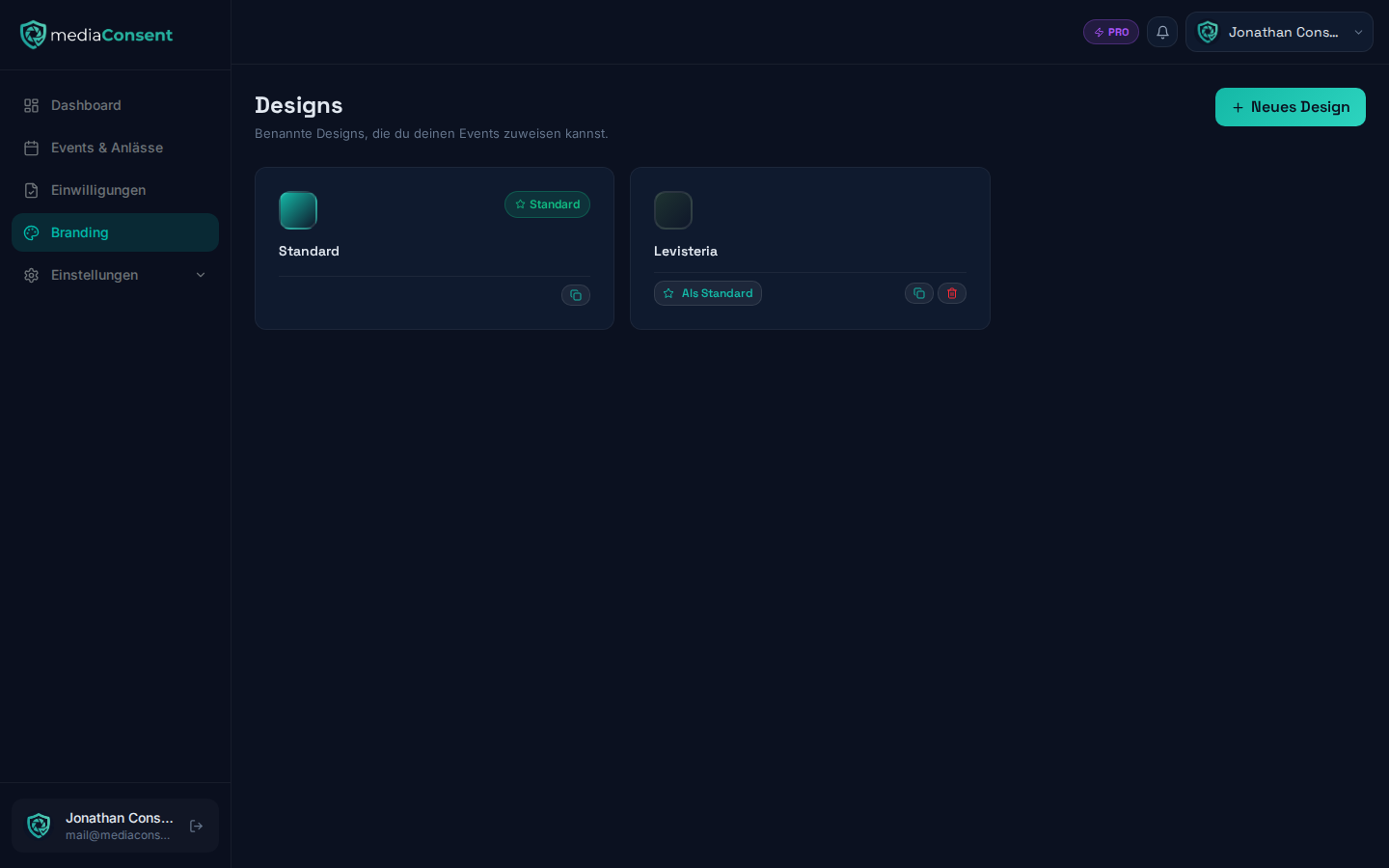
On the overview page you'll see all your designs as tiles, with the default design marked by a star badge.
- Free plan: exactly one design — the default design, which you can edit freely but can't duplicate or delete.
- Pro plan: any number of additional, named designs via the "New design" button — handy for multiple brands or recurring event series with a different look.
Each design tile offers the following actions:
- Set as default — makes this design the new default design (not available for the current default design itself)
- Duplicate — creates a copy with all its settings
- Delete — only possible if the design isn't the default design and isn't currently assigned to any event
Clicking a tile opens the design editor with the three tabs described below.
"Visual Branding" tab
Logo & colors (Free)
- Logo — PNG, JPEG, SVG, or WebP, max. 2 MB, appears in the kiosk portal and in the PDF header. Size can be adjusted with a slider from 24–120 px.
- Colors — five values control the appearance: primary color,
background color, text color, accent color, and heading color. Each color
can be set via the color picker or as a hex code (
#RRGGBB).
Font, style & background (Pro)
:::info Pro feature See Plan & Billing. :::
- Font — choose from pre-installed web fonts with a live preview
- Style — button style (
solid,outline,ghost) and corner radius (none,sm,md,lg,full) - Portal background — optional background image (PNG, JPEG, or WebP, max. 10 MB) with adjustable overlay opacity and gradient effect
On the right you'll see a live preview of the portal, plus a list of all events currently using this design — either because it was explicitly assigned to them, or because it's the default design and they weren't assigned a different one.
"Identity & Contact" tab (Free)
- Name / Organization — appears on the portal and PDF. This field is display-only here and is taken directly from your organization details; you can change it under Settings → Organization.
- Sender email — the sender for automatic emails to participants
- Footer text (max. 500 characters) — appears in the portal's footer and in emails
:::info Note for Free-plan accounts On the Free plan, a small "Powered by mediaConsent" notice is automatically appended to your footer text. It can't be removed — upgrading to Pro removes it. :::
"PDF Document" tab (Pro)
:::info Pro feature See Plan & Billing. :::
Separate color settings for the header and footer of the generated PDF document (background and text color for each area), the maximum logo height in the PDF (24–72 px), and a toggle for whether the company name is shown in the PDF footer. The address and email in the footer are pulled automatically from your Privacy Settings. A live preview of the PDF layout appears on the right.
Assigning a design to an event
On the event's detail page (tab "Design"), click to choose from your list of designs which one applies to this event — right next to it you'll see an immediate live preview of the portal with that design. An "Edit design" link takes you directly to the corresponding design editor.
If an event isn't assigned its own design, it automatically uses the default design. If you later change the default design (via "Set as default" on the overview page), that immediately affects every event that wasn't explicitly assigned a different design.
Portal texts (welcome title/text, consent text, and refusal text) aren't part of a design and follow their own, independent logic: if you don't set anything of your own in an event's texts (see Create an Event), the mediaConsent default text applies directly.
:::info Pro feature Creating a second or additional design and assigning it to individual events is part of the Pro plan — on the Free plan there's only the one default design for all events, see Plan & Billing. :::