Manage Consents
Every response a guest gives in the kiosk portal ends up as a consent, an objection, or — after a revocation — as revoked in your management area. You have two views for this: an overview across all events and a list scoped to a single event.
Global overview
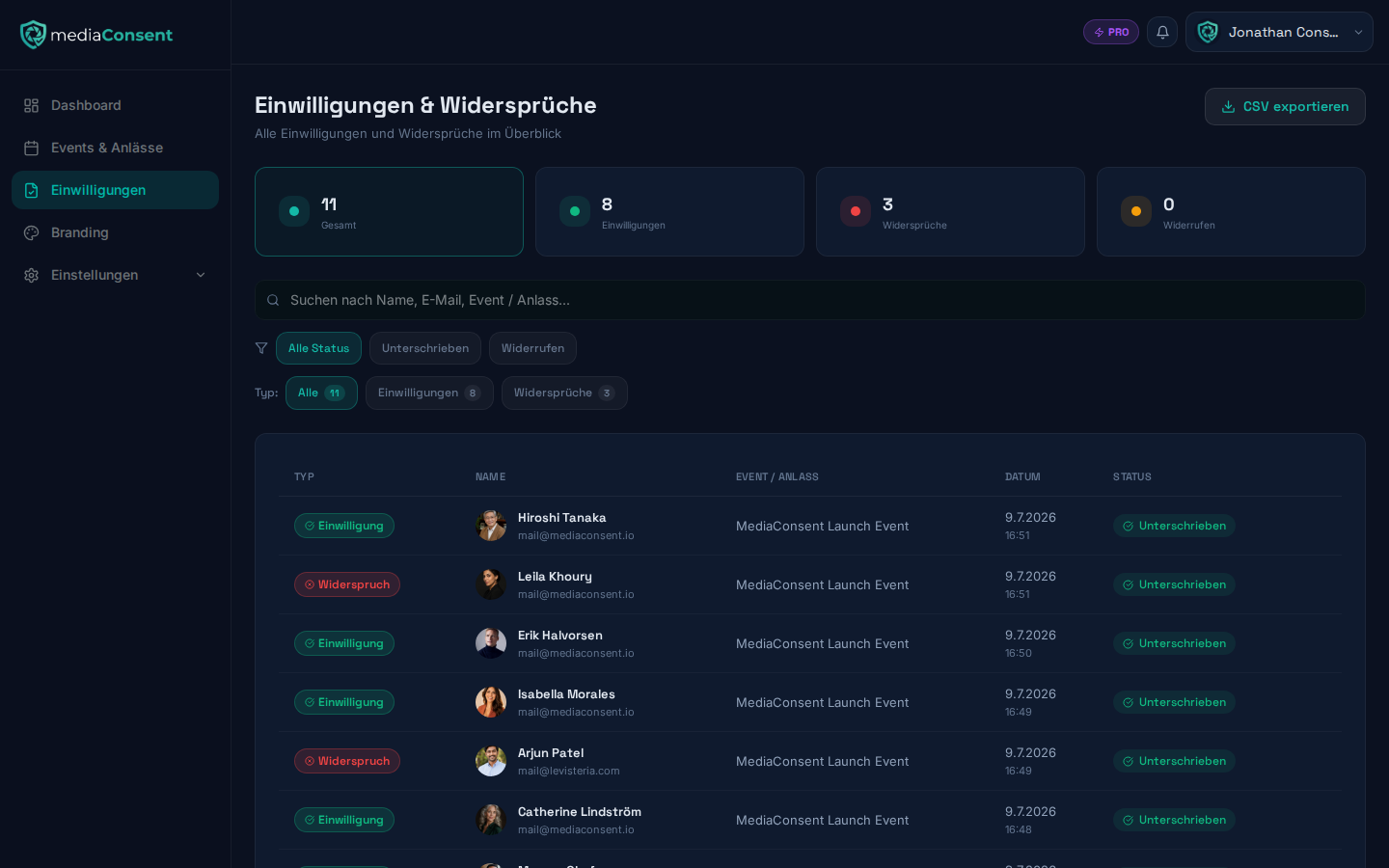
Under "Consents" in the navigation you'll find all consents and objections across all events in one place. The view offers:
- Search by name, email address, or event name
- Status filter: All, Signed, Revoked
- Type filter: All, Consents, Objections
- A tile overview with totals (Total, Consents, Objections, Revoked)
- A CSV export across all events (the "Export CSV" button)
Consents per event
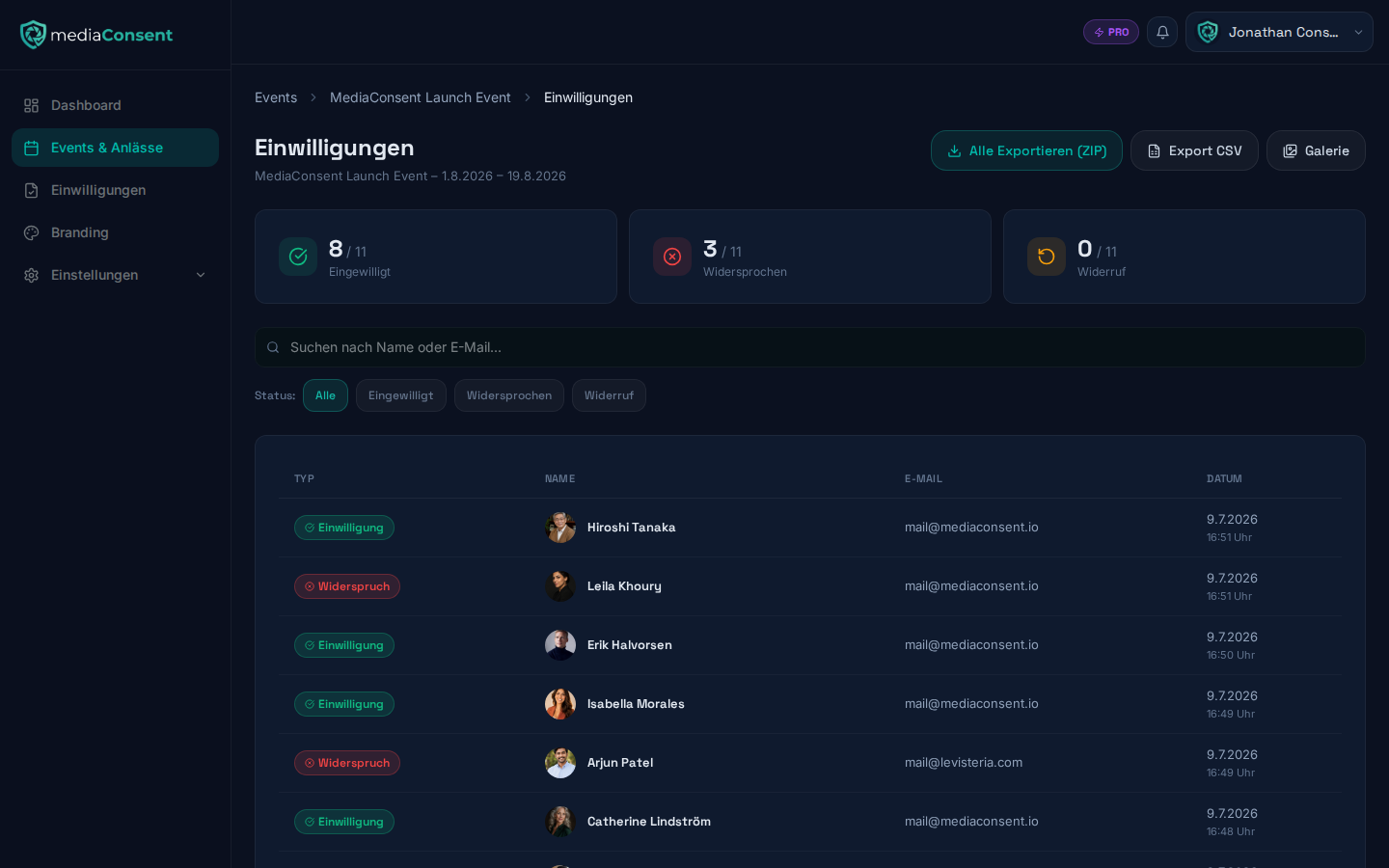
On an individual event's detail page you'll find the same list, scoped to that one event — handy if, say, right after an event you only want to review or export its own consents.
Export
For every event, you can export all consents:
- CSV export — tabular overview of all consents/objections, ready to download immediately
- ZIP export (Pro) — all PDF documents bundled as an archive, see Plan & Billing. For events with many consents, building the archive can take a while, so the export runs in the background: you'll get an immediate confirmation that the export is being prepared, and once the ZIP is ready, a notification (bell icon, top right of the admin area) and an email — both with a direct download link. The link is valid for 24 hours; after that, simply start the export again.
Consent detail view
Clicking an entry opens its detail page with:
- the answers given, the digital signature, and, if provided, the reference photo
- contact details (name, email — click to copy)
- the confirmation PDF's status: while the document is still being generated, the download button is greyed out and shows "Generating PDF…"
- an activity log that makes the sequence of events traceable (form opened, consent text read, signed or objection submitted, confirmation email sent, revoked if applicable)
- a GDPR box that classifies the legal status (e.g. "Stored GDPR compliant", "Objection documented", or "Consent revoked") along with the relevant GDPR articles
Revocation
A consent can be revoked in two ways:
- By the guest themselves — every consent email contains a personal link that lets the guest revoke it without logging in.
- By you as the organizer — via the "Revoke consent" button on the consent's detail page, with a confirmation dialog noting that already published content is not retroactively removed by this.
A revocation becomes visible in both overviews immediately.
Automatic anonymization
Expired consents are automatically anonymized, so you stay GDPR-compliant without manual cleanup. You can customize the retention period — on both the Free and Pro plans — see Privacy Settings.
Participants can also request early deletion of a single consent themselves via the self-service page. You actively decide on these requests under Deletion Requests — mediaConsent never deletes on its own.
Gallery shares (Pro)
With the Pro plan, you can share a link to an event's photo gallery with external people (e.g. photographers, videographers, or other partners), without requiring them to create an account — see Gallery Shares.