Plan & Billing
mediaConsent offers two plans: Free and Pro. You manage your plan, payment method, and invoices entirely yourself under Settings → Plan — no need to contact support.
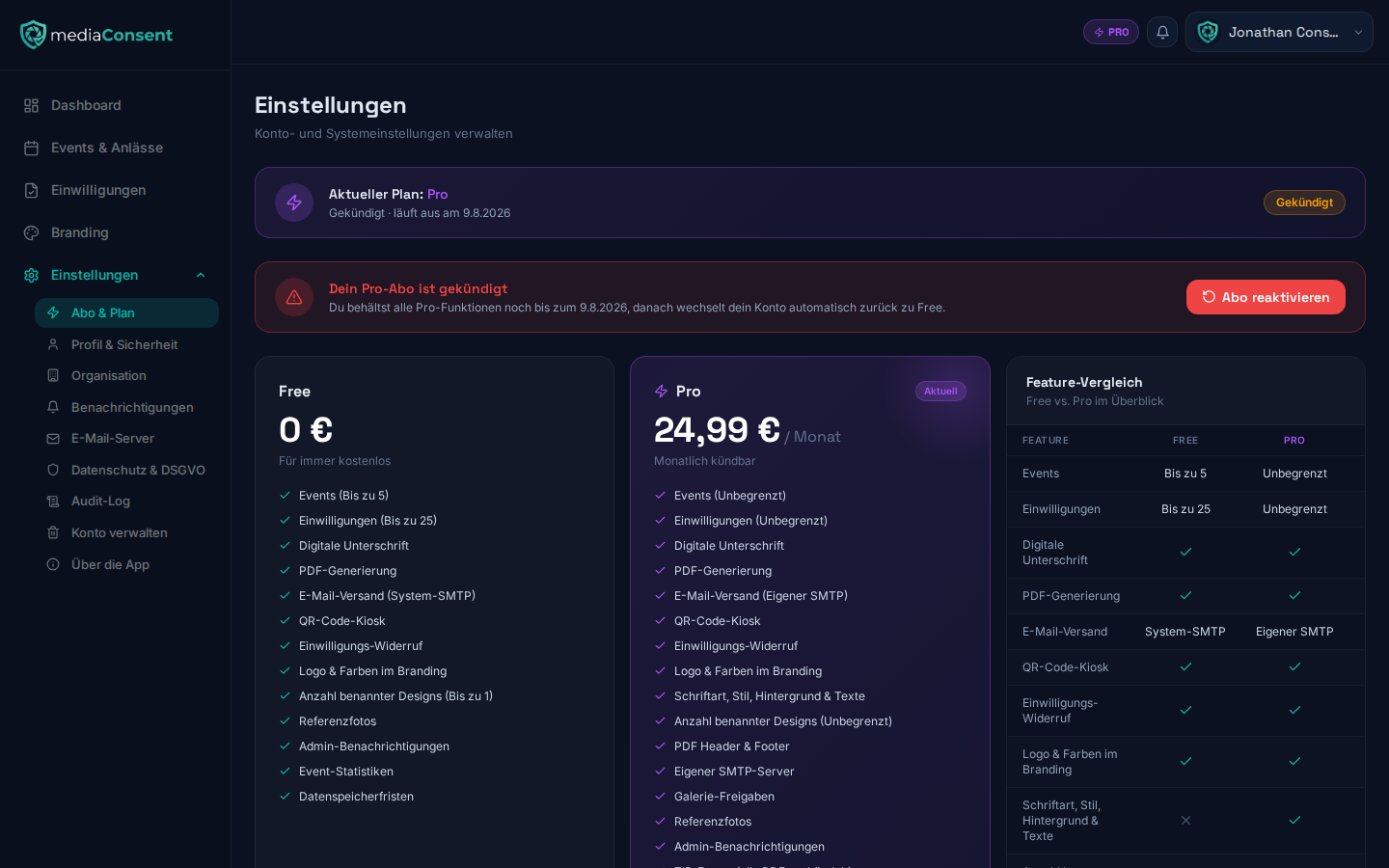
Free
- Up to 5 events (drafts and archived events count too — see the note on the event limit)
- Up to 25 consents per event
- Logo, colors, and identity & contact in global branding
- Individual portal texts per event (welcome title/text, consent text, and refusal text) — see Create an Event
- Reference photos
- CSV export of all consents (see Manage Consents)
- Event statistics (see Dashboard & Statistics)
- Email notifications for admins
- Customizable retention period for consents
Pro
Everything in Free, plus:
- Unlimited events
- Branding: font, style, background image, and the PDF layout — plus custom branding for individual events
- Your own SMTP server instead of system delivery
- Gallery shares for photographers, videographers, and other partners
- ZIP export bundling all PDF documents of an event (see Manage Consents)
- No "Powered by mediaConsent" notice in the footer
Price: €24.99 / month or €249.99 / year (equivalent to €20.83 / month, 17% savings compared to monthly billing), plus VAT.
Trial period
Under Settings → Plan you can start a one-time 7-day free trial of the Pro plan (button "Start 7 days free") — either right during onboarding after registration, or any time later as long as you haven't used it yet. Alternatively, you can also switch straight to Pro without using the trial.
During the trial you have full access to all Pro features. You can cancel it early at any time via "End trial" — your account then switches back to Free immediately. If the trial expires without you starting a subscription, your account also automatically switches back to Free.
Upgrading & payment
"Upgrade now" opens checkout (Stripe), where you choose between monthly and yearly billing and enter your payment details. Once completed successfully, your account is switched to Pro immediately.
Managing your subscription
While your Pro subscription is active, Settings → Plan offers the following actions:
- Manage subscription — opens the Stripe customer portal, where you can update your payment method and billing address
- Cancel subscription — your Pro subscription stays active until the end of the current billing period, after which your account automatically switches to Free. An already scheduled cancellation is shown with a "Canceled" badge and the end date.
- Reactivate subscription — as long as a cancellation is only scheduled but not yet in effect, you can undo it with one click; your subscription then continues normally and is billed again at the next due date.
Monthly subscriptions can be canceled monthly; yearly subscriptions can't be canceled early on a monthly basis.
Invoices
Under "Invoices" you'll find an overview of all your past Stripe payments, including status (paid, open, void) and a direct PDF download for each invoice.
Note on the event limit
The Free plan's limit of 5 events counts all events on your account — regardless of status. Archiving an event or leaving it as a draft does not free up additional room; only upgrading to Pro helps, or deleting excess events — which only works as long as the event in question has no consents or objections yet (see deleting an event). Events with existing consents can only be archived, not deleted, and so keep counting against your limit.
After a cancellation or downgrade
If your account switches back to Free (through the trial expiring, canceling your subscription, or manually ending the trial), your existing events and consents remain fully intact. You lose access to Pro-only features (custom event branding, custom SMTP, gallery shares, ZIP export) until you upgrade again. You also can't create new events beyond the Free limit anymore.
If you have more active events than the new limit allows
If at the time of the downgrade you have more active events than the 5 allowed on the Free plan, mediaConsent automatically selects the excess events and freezes them (events with the nearest upcoming date are kept active first). For a frozen event:
- The portal is locked for guests, no new consents can be submitted.
- Existing consents remain fully intact, viewable, and exportable. Only new submissions are blocked.
You can recognize a frozen event by the "Frozen" badge on the events list and on the event detail page, which also shows a banner with a button to unfreeze it.
You decide in the end which events stay active. Using "Unfreeze event" on the event detail page, you can unfreeze a frozen event at any time, as long as it wouldn't push your total number of active, unfrozen events over your limit. If it would, first freeze a different event manually via "Freeze event" to make room. Upgrading to Pro automatically unfreezes all frozen events.
All data remains stored regardless of plan for the duration of your configured retention period, see Privacy Settings.