Profile & Security
Under Settings → Profile you manage your personal details, language, and
account security.
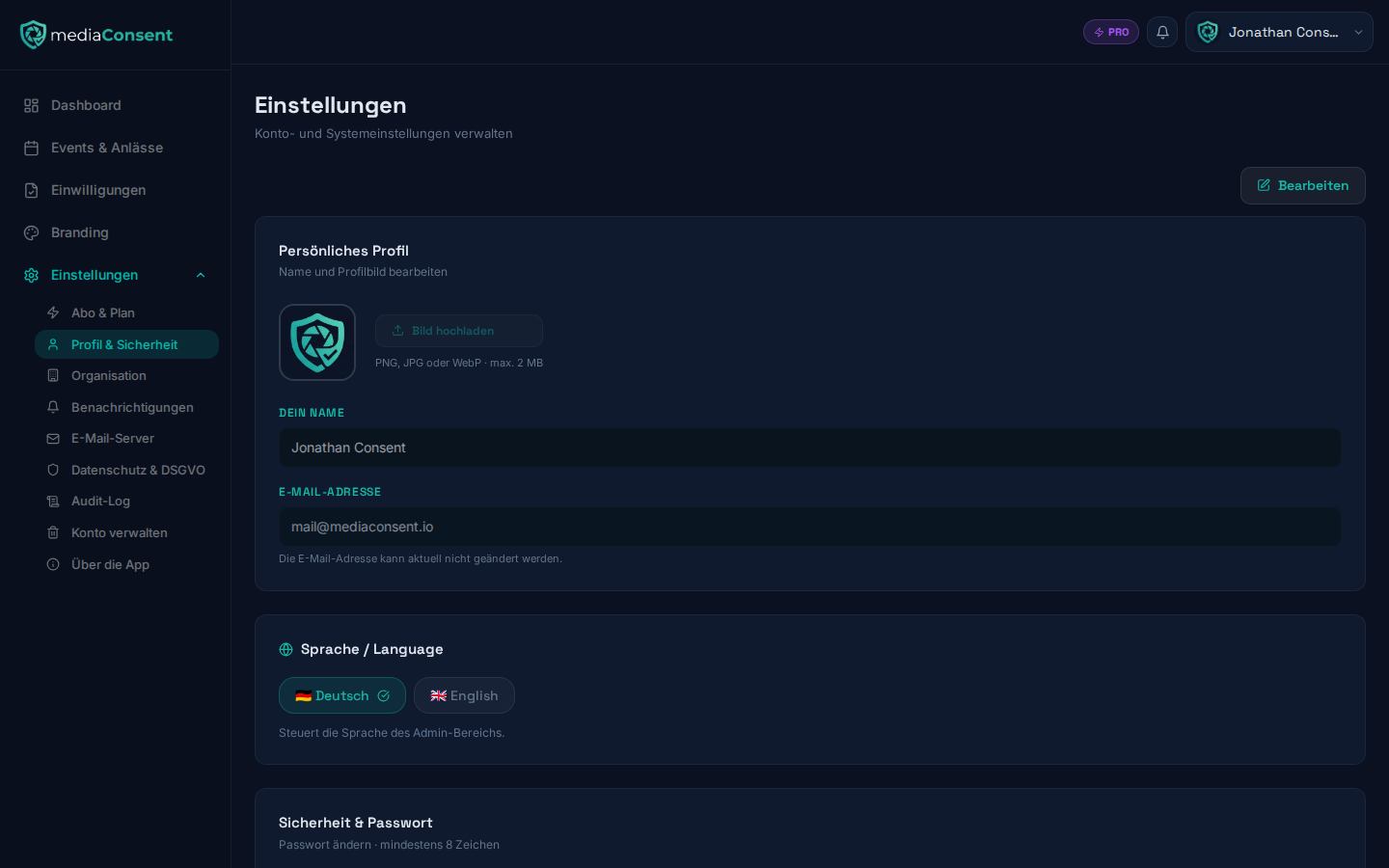
Personal profile
- Name — your displayed name in the admin area
- Email address — display only, can't be changed here
- Profile picture — PNG, JPEG, or WebP, max. 2 MB
Language
Choose between 🇩🇪 Deutsch and 🇬🇧 English. The switch takes effect immediately across the whole admin interface and is saved for your account.
Change password
Enter your current password and a new password (min. 8 characters) and confirm it. A strength indicator (weak/medium/strong) helps you pick a secure password. The eye icon toggles visibility of the password fields.
Two-factor authentication (2FA)
In addition to password login, you can secure your account with an authenticator app (e.g. Google Authenticator, Authy).
Enabling 2FA
- Click "Set up two-factor authentication".
- Scan the displayed QR code with your authenticator app — or enter the manual code by hand if scanning isn't possible.
- Enter the 6-digit code from the app to confirm setup.
Once verified, 2FA is active, shown by a green "Active" badge. On every subsequent login, you'll be asked for the current 6-digit code in addition to your password (see Getting Started).
Disabling 2FA
While enabled, a "Disable" button lets you turn 2FA off again at any time.
Privacy notice
For questions about your stored data, reach out anytime at
support@mediaconsent.io.